 Technopulse



To speed up a Shopify store safely, measure real user data in Shopify’s Web Performance dashboard first, then fix the biggest causes in order: app scripts, the main product image, image sizes, fonts and leftover theme code, testing each change on a duplicate theme. Most slow stores are slowed by what was added to them, not by Shopify.
Speed work has a reputation for breaking things. A developer minifies a script, the cart drawer stops opening, and nobody notices until sales dip. I have seen it often enough that every speed project we run follows the same rule: measure, change one thing, check it, then move on. This guide walks through that process so you can do it yourself, or know what to ask for.

Key takeaways
- Judge speed on Core Web Vitals from real shoppers, not on a single lab score.
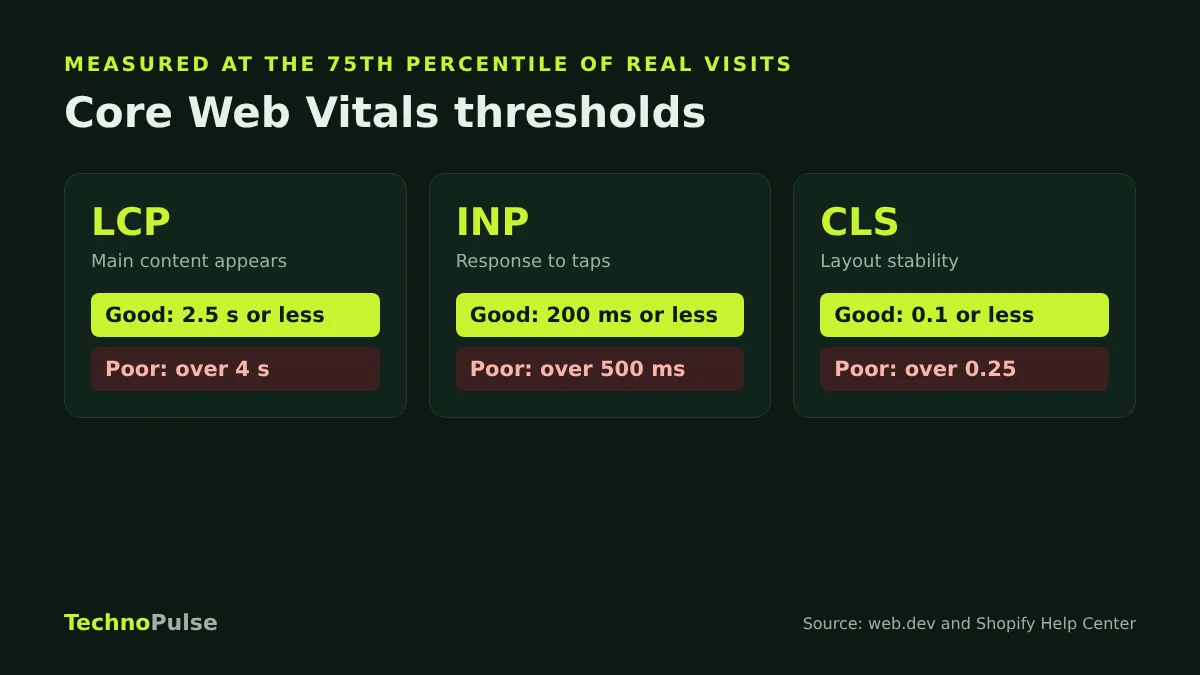
- Good means LCP of 2.5 seconds or less, INP of 200 milliseconds or less and CLS of 0.1 or less, measured at the 75th percentile.
- App scripts and the main product image cause most slow stores. Start there.
- Never lazy load the main image at the top of the page.
- Make every change on a duplicate theme, then compare real user data after publishing.
Step 1: Measure the right thing
PageSpeed scores move every time you run them, and a lab test on a fast laptop says little about a shopper on an older phone. What matters for Google and for sales is how fast the store feels to real visitors. Google calls these measures Core Web Vitals.
| Metric | What it measures | Good | Poor |
|---|---|---|---|
| LCP (Largest Contentful Paint) | How fast the main content appears | 2.5 s or less | Over 4 s |
| INP (Interaction to Next Paint) | How fast the page responds to taps and clicks | 200 ms or less | Over 500 ms |
| CLS (Cumulative Layout Shift) | How much the layout jumps while loading | 0.1 or less | Over 0.25 |
A page passes when at least 75 percent of visits meet the good threshold. You can read how these limits were chosen in Google’s explanation of the Core Web Vitals thresholds.
Use Shopify’s own Web Performance dashboard
Shopify now shows these numbers from your real visitors. Go to Online Store, then Themes, and look at the performance summary, or open the web performance reports under Analytics, then Reports. According to Shopify’s documentation, the summary uses real user data from the past 30 days at the 75th percentile, the data can lag by up to 36 hours, and the over time reports mark events such as app installs and theme changes on the chart.
Those event markers are the most useful part. If LCP jumped the week you installed a reviews app, you have your first suspect. Break the reports down by page type, because a slow product template costs far more than a slow policy page.
Step 2: Audit your apps and tracking scripts
On almost every slow store we audit, apps are the first problem. Each one can add scripts, styles and network requests to every page, even pages where the app does nothing. Shopify’s own theme guidance calls out the pattern of a small share of scripts causing most of the problems.
- List every installed app and every app embed turned on in the theme editor.
- For each one, ask: does this earn more than it costs? Be honest about apps nobody has looked at in a year.
- Remove the ones you do not need, then check the theme code for leftover snippets. Uninstalling an app does not always remove what it added.
- Review tracking pixels and tag manager tags. Duplicate pixels for the same platform are common.
- If you are not running an A/B test right now, remove the testing tool’s anti flicker snippet. It hides the page while it waits.
Heavy app scripts mostly hurt INP, the responsiveness score, because they keep the browser busy when the shopper taps. Removing two or three unused apps often does more than any code change.
Step 3: Fix the main image on product and home pages
The largest element at the top of the page, usually the hero image or the first product photo, decides your LCP. Shopify’s theme performance best practices are clear on how to handle it:
- Never lazy load the main image. Lazy loading is for images further down the page. On the first image it delays the very thing LCP measures.
- Give it high priority. Adding fetchpriority=”high” to the main image tells the browser to fetch it first.
- Do not hide it behind a slider or animation. A fade in or a carousel that loads with JavaScript can push LCP back by seconds.
- Avoid CSS background images for the hero. The browser finds them late.
Many themes lazy load every image by default, including the first one. Checking this is a five minute job with a big payoff.
Step 4: Serve the right image sizes
Uploading a 4000 pixel photo is fine on Shopify, as long as the theme serves smaller versions to phones. Themes that use Shopify’s image_url and image_tag filters with srcset and sizes do this automatically. Older or heavily customised themes sometimes hard code one large image for every screen.
Also make sure every image has width and height set. Without them, the page jumps as images load, which hurts CLS and frustrates shoppers who tap the wrong button.
Step 5: Fonts and theme code
- Fonts. Each font file is a download. Use one or two families, host them on Shopify’s CDN rather than an external font service, and consider system fonts for body text.
- Unused sections. Sliders, video backgrounds and pop ups nobody interacts with still load. Remove what is not earning its place on the home and product templates.
- Script loading. Scripts that are not needed for the first view should load with defer, so they do not block the page.
- Space for app content. Reviews widgets and upsell blocks that appear after loading cause layout shift. Reserve space for them with a minimum height.
How to prioritise: impact versus effort
You do not need to do everything. Rank each fix by how much it will move your worst metric and how hard it is to do safely.
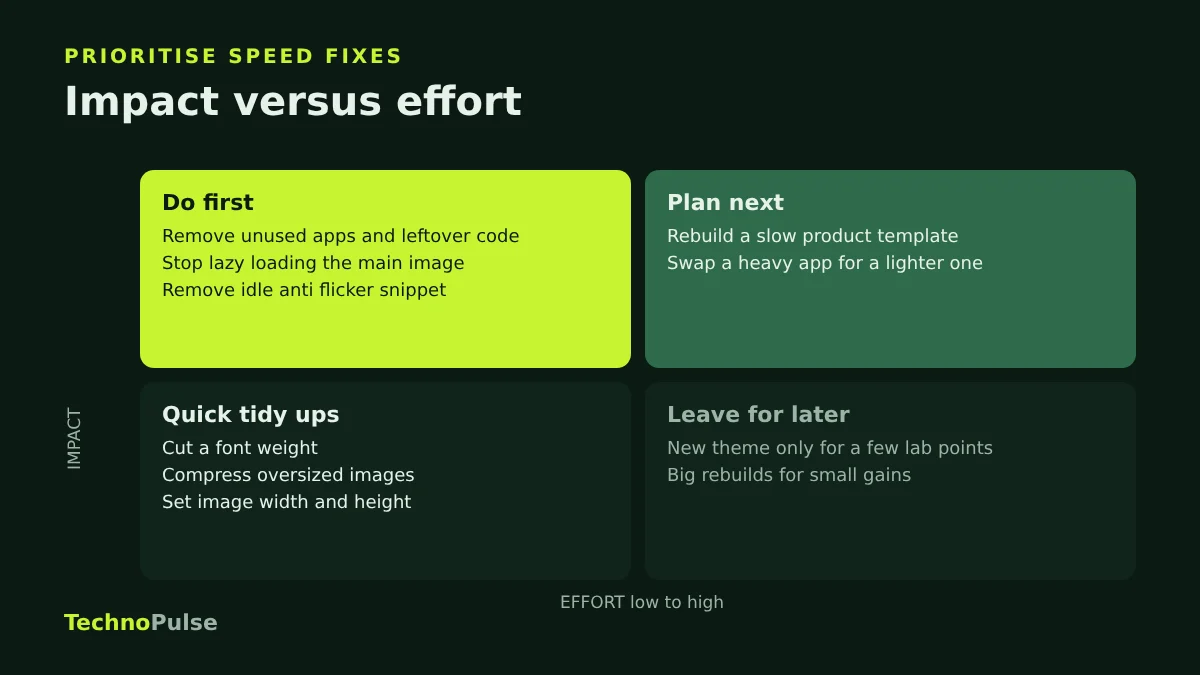
- Do first (high impact, low effort): remove unused apps and leftover code, stop lazy loading the main image, remove an idle anti flicker snippet.
- Plan next (high impact, more effort): rebuild a slow product template, replace a heavy app with a lighter one or native Shopify features.
- Quick tidy ups (lower impact, low effort): cut a font weight, compress a few oversized images, set image dimensions.
- Leave for later: large rebuilds for small gains, such as moving to a new theme only for a few points of lab score.
How to do it without breaking your store
- Duplicate the live theme and make changes on the copy.
- Change one thing at a time and test the key journeys after each change: product page, add to cart, cart drawer, checkout button, search and filters, on a real phone.
- Write down what you changed and when, so you can match it to the event markers in the performance report.
- Publish, then wait for real user data. Remember it can lag by up to 36 hours and reflects 30 days, so give it a week before judging.
- Keep the old theme for a few weeks as a rollback.
Does speed affect sales and SEO?
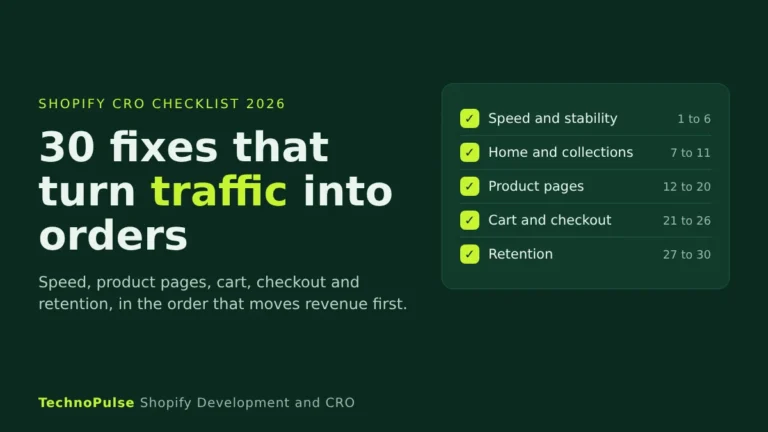
Core Web Vitals are part of how Google evaluates page experience, but they will not lift a page with weak content above a stronger one. The bigger reason to care is your shoppers. A product page that takes too long to show its photo, or a cart button that lags after a tap, loses people who were ready to buy. Speed work pays off best alongside conversion work, which is why it sits near the top of our Shopify CRO checklist. If you want to know where your store sits, our guide to a good Shopify conversion rate in 2026 gives you the benchmarks.
Frequently asked questions
What is a good speed score for a Shopify store?
Focus on Core Web Vitals from real users rather than a single score: LCP of 2.5 seconds or less, INP of 200 milliseconds or less and CLS of 0.1 or less at the 75th percentile. Lab scores swing between runs and are a rough guide only.
Why is my Shopify store slow?
Usually because of apps and tracking scripts loading on every page, a main image that is lazy loaded or hidden in a slider, oversized images and too many fonts. Shopify’s hosting is rarely the cause.
Do Shopify apps slow down my store?
Many do, because they add scripts and styles to every page. Some leave code behind after you uninstall them. Audit apps regularly and remove what you do not use.
Will a new theme make my store faster?
A modern theme helps if your current one is old or heavily customised, but if you add the same apps and sections back, the new theme will slow down too. Fix the causes first.
How long until speed changes show in Shopify’s reports?
Data can lag by up to 36 hours and the summary covers the last 30 days, so allow about a week of traffic before judging a change.
Want a faster store without the risk?
Our Shopify speed optimization service follows exactly this process, measured on real user Core Web Vitals and tested on a duplicate theme before anything goes live. Since 2021 we have helped more than 200 DTC brands, and we hold a 5.0 rating on Google from over 40 client reviews. Request a free store audit and we will show you which fixes would make the biggest difference on your store.

Founder and CEO of TechnoPulse. Leads Shopify development, CRO and growth strategy for DTC brands in the US, Europe and Australia.
More about Haroon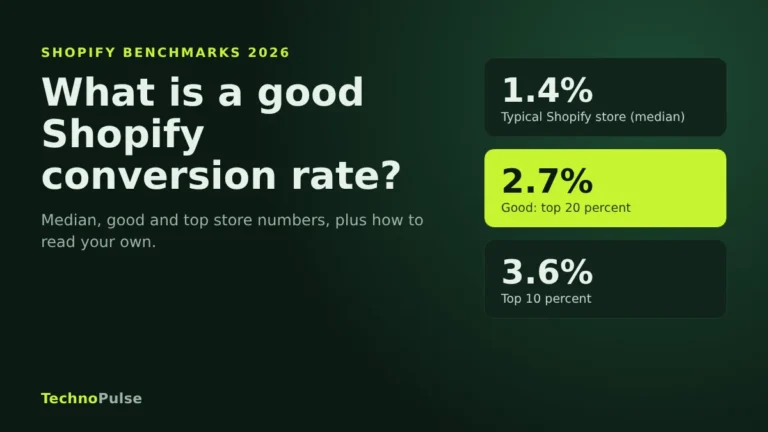

 Technopulse