
Shopify Store Maintenance Checklist: Stop Downtime
The weekly, monthly and quarterly checks that keep a Shopify store selling, with the official Shopify tools to use and a table for tracing recurring downtime.
 Haroon Ali ShahNovember 18, 2026 · 10 min read
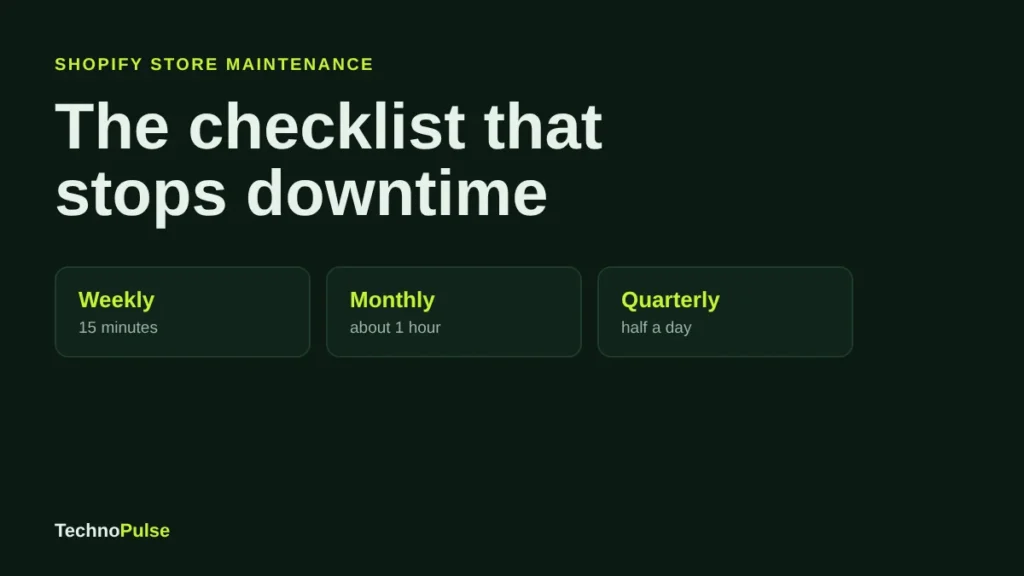
A Shopify store maintenance checklist is a short list of weekly, monthly and quarterly checks that keep checkout, tracking, speed and search visibility working, so problems are caught before customers or ad spend find them. Shopify runs the servers and the platform, but your theme, apps, data, tracking and staff access are yours to look after, and that is where almost every outage on a Shopify store starts.
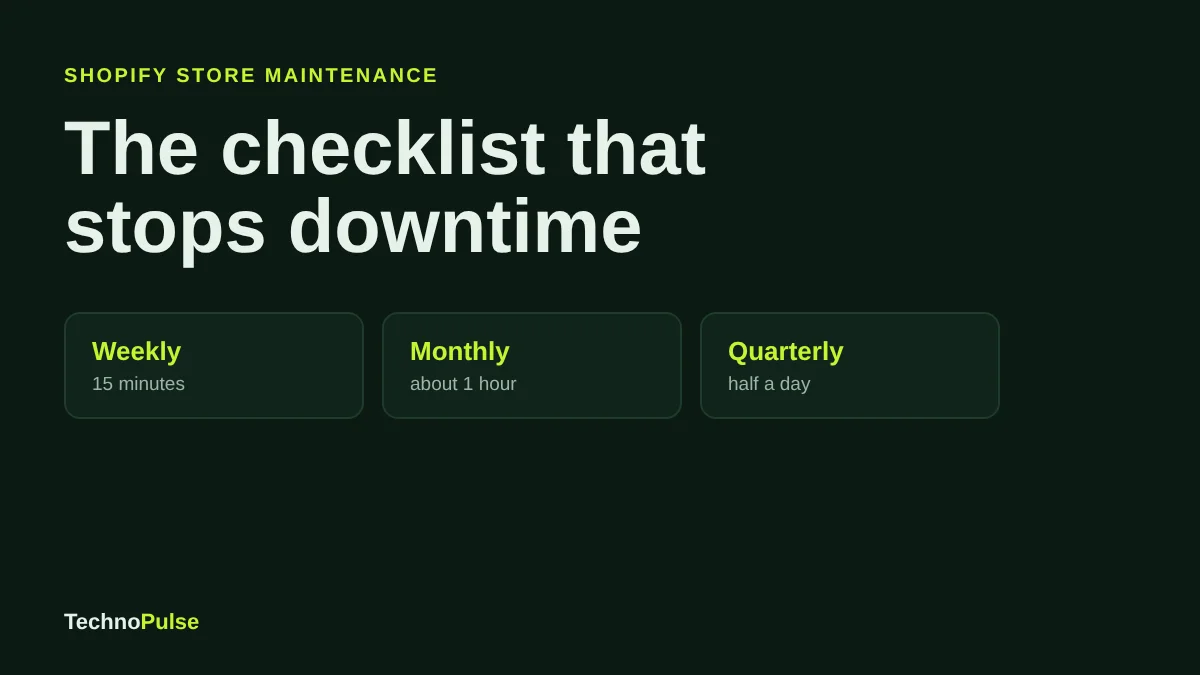
This is the routine we run on client stores. It takes about 15 minutes a week, an hour a month and half a day a quarter. Below you will find what to check at each interval, the official Shopify tools to use, and a quick way to trace the problems that keep coming back.
What Shopify maintains for you, and what it does not
Shopify is a hosted platform. Shopify looks after the hosting, servers, platform code, the checkout itself and the platform security patches. You never update a server, a PHP version or a database. That is the main reason Shopify needs far less upkeep than a self hosted store on WooCommerce or Adobe Commerce, where the owner also has to patch the core software, plugins and hosting.
What Shopify does not look after:
- Your theme. Code edits, sections and the apps that inject scripts into it.
- Your apps. Each one adds code, permissions and a possible point of failure.
- Your data. Products, customers and orders can be exported, but Shopify does not offer a one click restore of your store.
- Your tracking. Pixels, conversion events and analytics that tell you whether the store is actually selling.
- Your access. Staff accounts, collaborators and app permissions.
Every item on the checklist below sits in one of those five areas.
The maintenance cadence at a glance
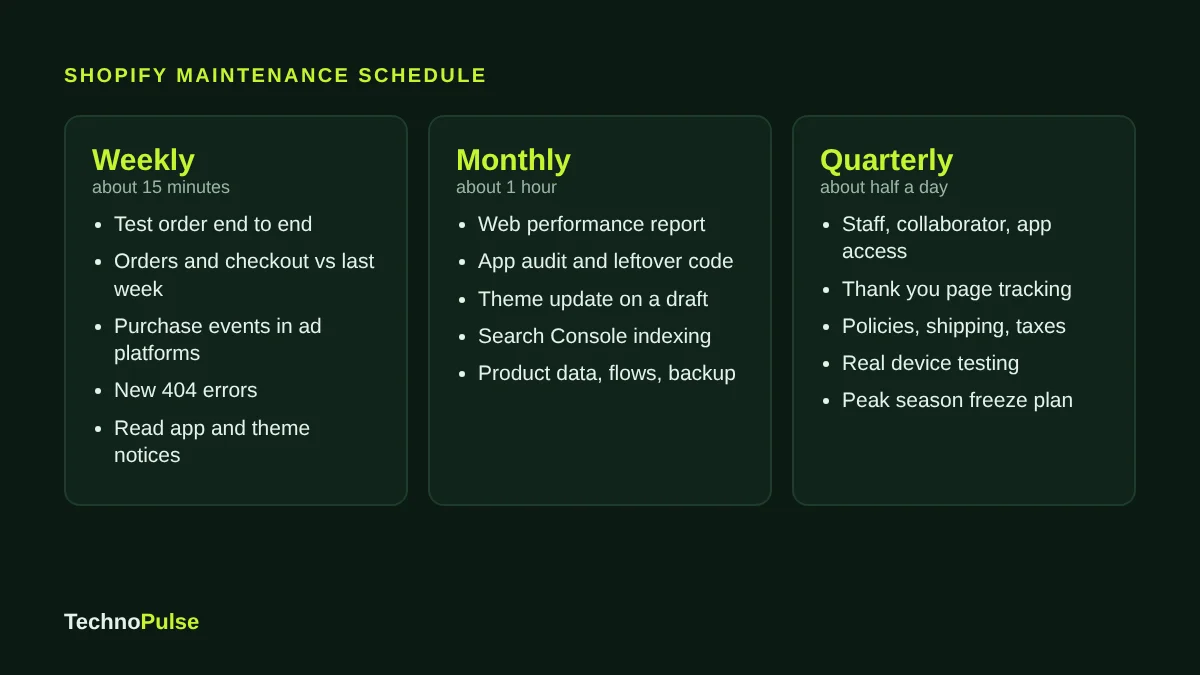
Not every check needs to run every week. Match the frequency to the cost of the problem: anything that stops orders gets checked weekly, anything that slowly erodes conversion or rankings gets checked monthly, and access and policy reviews run quarterly.
Weekly checks: about 15 minutes
1. Place a test order
Go through the full path a customer takes: product page, cart, checkout, payment and the Thank you page. Use a real low value product with a 100 percent discount code you delete afterwards, or a real payment you refund. Confirm the order confirmation email arrives, the order shows in your admin and the fulfilment app picks it up. A test order catches more problems than any other single check.
2. Compare orders and checkout completion with last week
Open Analytics and compare orders, sessions that reached checkout and sessions that completed checkout against the same day last week. A sudden drop with steady traffic usually points to a broken payment method, a shipping rate that disappeared or an app conflict in the cart. If the numbers moved after September 2026, read our note on the Shopify session measurement update before you assume something broke.
3. Confirm purchase events still reach your ad platforms
Check that purchases from your test order appear in Meta Events Manager, Google Ads and GA4. Tracking that silently stops is the most expensive failure on this list, because ad platforms keep spending while optimising on missing data. Your pixels live under Settings, Customer events.
4. Scan for new 404 errors
Deleted products and renamed collections leave dead links in Google, in emails and in old ads. In Google Search Console, open the Pages report and look at Not found (404). For any URL that used to sell, add a URL redirect in your Shopify admin (type URL redirects into the admin search bar) pointing to the closest live product or collection.
5. Read the notifications you usually skip
App update emails, theme update notices, payment provider messages and domain renewal reminders all land in the inbox of whoever opened the store. Make sure someone reads them every week.
Monthly checks: about an hour
6. Review the Web performance dashboard
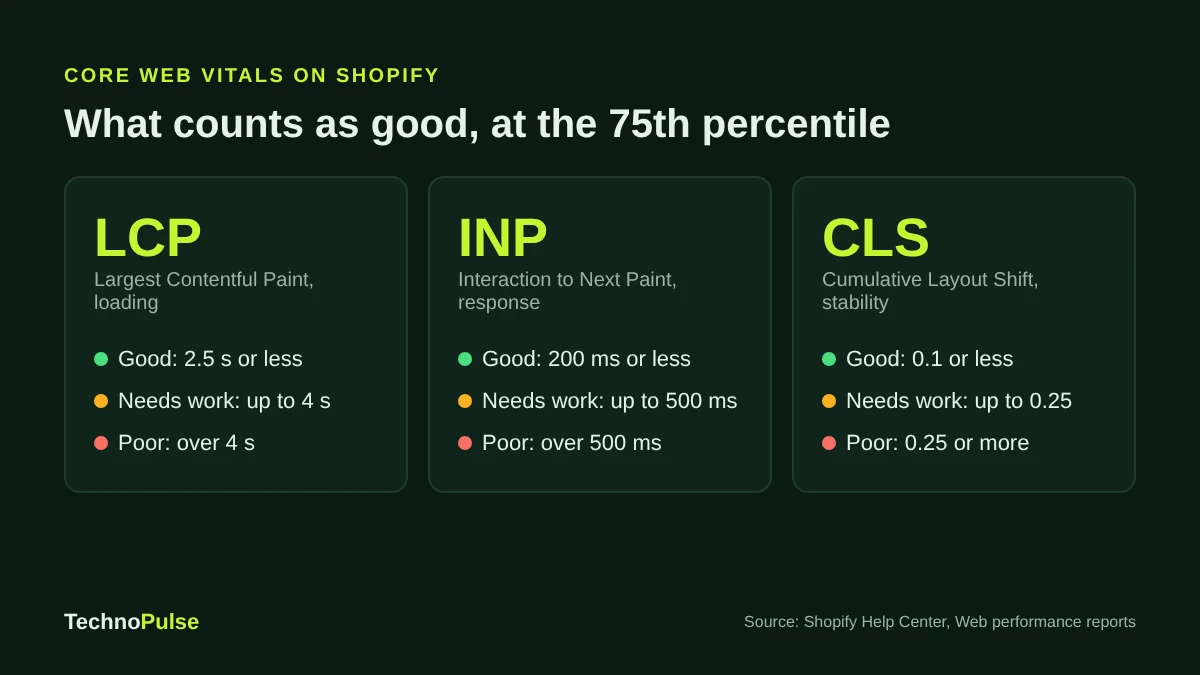
Shopify’s Web performance reports use Core Web Vitals from real visitors to your store. A page counts as good when, at the 75th percentile, Largest Contentful Paint is 2.5 seconds or less, Interaction to Next Paint is 200 milliseconds or less and Cumulative Layout Shift is 0.1 or less. The over time charts mark app installs and theme changes as numbered events, which makes it easy to see which change slowed the store down. Data can lag by up to 36 hours, so judge a change after a few days, not a few minutes.
If a metric is in the amber or red band, our guide on how to speed up a Shopify store without breaking it walks through the fixes in order of impact.
7. Audit your apps
List every installed app, what it does and who asked for it. Remove anything nobody can explain. Shopify’s own guidance is clear that too many apps loading assets on the storefront slows it down, and that uninstalling an app does not automatically remove its code from your theme. After you uninstall, search the theme code for the app name and ask the developer for removal steps if anything is left behind.
8. Apply theme updates the safe way
Theme updates bring bug fixes, security fixes and new features. When you add an update, Shopify creates a draft copy prefixed with Updated copy of, and changes made in the theme editor are carried over. Code edits are only carried over when they do not conflict with the update, so save a copy of any custom code first. Preview the draft on mobile, run a test order, then publish. Only themes from the Shopify Theme Store receive these updates; uploaded themes need updates from their developer.
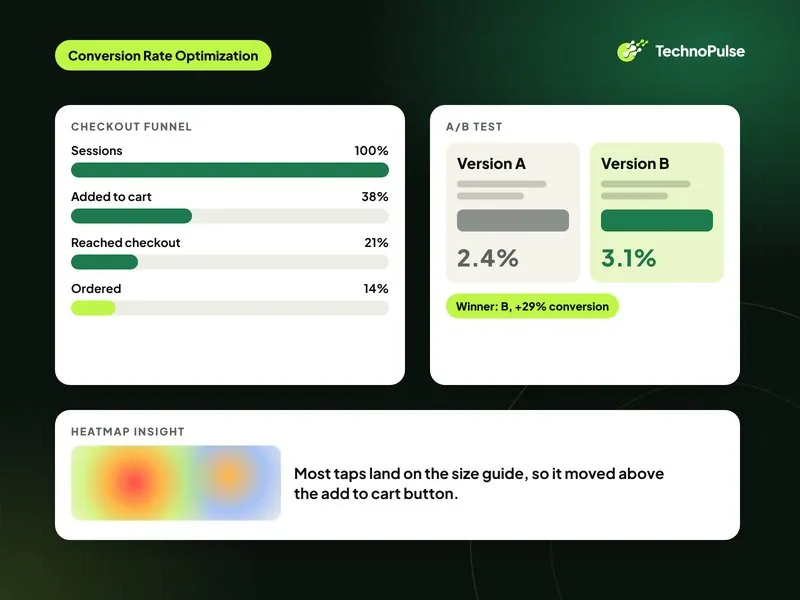
9. Check search visibility
In Search Console, look at indexed pages, any new Not indexed reasons and the queries that gained or lost impressions. A product collection that drops out of the index usually means a noindex app setting, a canonical change or a redirect loop.
10. Clean product and collection data
Look for products with missing images, zero price, broken variant options, empty collections and sold out items that still sit at the top of a collection. These are small, but they are exactly what a first time visitor notices.
11. Check email flows are still live
Open Klaviyo or Shopify Messaging and confirm welcome, abandoned checkout and post purchase flows are live and still sending. Flows switch to draft or manual more often than people expect, especially after a template edit.
12. Export a backup
Shopify lets you export CSV files of products, customers, orders and more, and download your theme, but restoring is a manual job and orders cannot be imported back through the admin. Export the main CSVs and the live theme once a month, or use a backup app from the Shopify App Store if your catalogue changes daily.
Quarterly checks: about half a day
13. Review staff, collaborator and app access
Shopify’s account security guidance asks merchants to turn on two step authentication, give every person their own staff account instead of sharing a login, review permissions so people only reach what they need, and check the activity log for changes nobody recognises. Remove former freelancers and agencies, and check that every installed or custom app is one you authorised.
14. Recheck the checkout and Thank you page
Shopify moved the Thank you and Order status pages to checkout extensibility, and non Plus stores had to upgrade by August 2026. Scripts that used to sit in Additional Scripts no longer run on the upgraded pages, so confirm every purchase event now fires through Customer events or a supported app. Our Shopify checkout optimization guide covers the rest of the checkout review.
15. Update policies, shipping and taxes
Read your shipping rates, delivery promises, returns policy and tax settings against what you actually do today. Carrier price changes and new markets make these drift every quarter.
16. Test on real devices
Run the full purchase path on a recent iPhone, a mid range Android phone and a desktop browser. Look for overlapping popups, sticky bars that hide the add to cart button and menus that do not close.
17. Prepare for peak season
Two to three months before a big sale, freeze non essential theme and app changes, load test your discount logic and agree who is on call. Our Shopify Black Friday checklist has the full list.
How to stop recurring downtime on a Shopify store
When a Shopify store goes “down”, Shopify itself is rarely the cause. In the stores we audit, the repeat offenders are a theme change pushed live without testing, two apps editing the same cart or product template, an expired domain or payment setting, and tracking that broke after an update. Use this table to find the likely cause quickly.
| What you see | Likely cause | First check |
|---|---|---|
| Add to cart does nothing | App or theme script conflict | Preview the previous theme version; disable the newest app embed |
| Orders drop, traffic steady | Payment method or shipping rate missing | Test order in each main market |
| Ads report fewer purchases than Shopify | Pixel or Customer events broken | Test purchase in Meta Events Manager and GA4 |
| Store slower after a change | New app or section loading assets | Event markers in the Web performance report |
| Pages vanish from Google | Noindex setting, canonical or redirect change | Search Console URL Inspection |
| Whole site unreachable | Domain or DNS problem | Domain renewal date and DNS records |
Four habits stop most of these from coming back:
- Keep a change log. One line per change: date, what changed, who did it. When something breaks, the cause is usually the last line.
- Never edit the live theme directly. Work on a duplicate, preview it, run a test order, then publish. Keep the previous theme as a rollback.
- Change one thing at a time. Installing three apps on the same afternoon makes it impossible to know which one caused the problem.
- Give every app and integration an owner. Someone who reads its update emails and knows why it is installed.
Do it yourself or hire a maintenance team?
If you have one person who can spend the hour a month and owns the inbox, this checklist is enough. It is worth bringing in help when the store runs paid traffic every day, has more than a handful of apps, sells in several markets or has a custom theme, because then an unnoticed hour of broken checkout costs more than a month of upkeep.
That is the work our ecommerce maintenance service covers each month: updates, app audits, speed, tracking and a written report. Since 2021 we have helped more than 200 DTC brands, and on stores where we run growth and upkeep together the results compound: an outdoor gear brand grew online sales 5.8x and lifted conversion 49 percent. If speed is your main issue, see our Shopify speed optimization service.
Not sure where your store stands? Book a free Shopify store audit and we will check your speed, apps, tracking and checkout and send you the fixes in order of impact.
Frequently asked questions
How often should a Shopify store be maintained?
Run quick checks weekly (test order, tracking, 404 errors), a deeper review monthly (speed, apps, theme updates, search, backups) and an access and policy review every quarter. Stores with daily ad spend or frequent theme changes should keep the weekly test order no matter what.
Does Shopify back up my store?
Shopify keeps the platform running, but it does not offer a one click restore of your store data. You can export CSV files of products, customers and orders and download your theme, and you can use a backup app from the Shopify App Store for automatic backups. Orders cannot be imported back through the Shopify admin.
Which ecommerce platforms require the most maintenance?
Self hosted platforms such as WooCommerce and Adobe Commerce (Magento) need the most, because the owner also maintains hosting, core software updates, plugins and security patches. Hosted platforms such as Shopify need less: you maintain the theme, apps, data, tracking and access, while Shopify maintains the platform.
Do Shopify theme updates delete my customizations?
Changes made in the theme editor are copied to the updated theme. Code edits are included only when they do not conflict with the update, so save a copy of custom code first, review the draft copy Shopify creates and publish it only after a test order.
Why does my Shopify store keep going down?
Repeated outages on Shopify are usually caused by untested theme changes, app conflicts, domain or payment settings, or broken tracking rather than by Shopify itself. A change log, a duplicate theme for edits and one change at a time fix most of them.

Founder and CEO of TechnoPulse. Leads Shopify development, CRO and growth strategy for DTC brands in the US, Europe and Australia.
More about Haroon