

WooCommerce to Shopify Migration: 2026 Step by Step Guide
How to move from WooCommerce to Shopify without losing sales or rankings: what transfers, URL mapping and 301 redirects, the /shop catch, data import order and a 30 day launch check.
 Haroon Ali ShahNovember 13, 2026 · 9 min read

A WooCommerce to Shopify migration moves your products, customers and order history into Shopify, then sends every old URL to its new home with a 301 redirect so you keep your sales and your rankings. Most stores can do it in four to eight weeks if they map URLs before they import anything and launch outside their peak season.
We see the same pattern on almost every store audit: the import goes fine, and the damage comes later from missed redirects, broken tracking and customers who cannot log in. This guide walks through the exact order we follow so none of that happens to you.
Should you move from WooCommerce to Shopify?
Move when the store is costing you more time in maintenance than it earns in growth. The usual triggers we hear from founders:
- Plugin updates break checkout or the theme, and every fix needs a developer.
- Hosting, security and speed are your problem, and the site slows down during sales.
- You want native features such as Shop Pay, Shopify Markets or a cleaner app ecosystem.
- Your team wants to edit pages and products without touching PHP.
Stay on WooCommerce if your business depends on deep custom logic inside WordPress that no Shopify app or custom app can replace, or if your content site and store are so tightly linked that splitting them costs more than it saves. If you are unsure which Shopify plan you need after the move, read our guide on Shopify vs Shopify Plus first.
What moves from WooCommerce to Shopify, and what does not
Shopify’s own free Store Migration app supports WooCommerce. According to Shopify’s guide to the Store Migration app, it brings over product titles, descriptions, variants, prices, inventory, images, SKUs, barcodes and customer contact and address details. It does not bring over orders, collections, menus, blog posts, pages, reviews, SEO data or redirects. Those need a paid migration app, a CSV tool or manual work.
| Data | Store Migration app | What to use instead |
|---|---|---|
| Products, variants, images, SKUs | Yes | Check variant options after import |
| Customers and addresses | Yes | Passwords never transfer, see below |
| Order history | No | A paid migration app or a CSV import tool |
| Categories to collections | No | Rebuild as smart or manual collections |
| Blog posts and pages | No | Migration app or copy over and clean up |
| Reviews | No | Export from your review plugin, import to your Shopify review app |
| SEO titles, metas, redirects | No | Map manually, import redirects by CSV |
Two catalog limits matter before you import. Shopify now allows up to 2,048 variants per product, up from the old limit of 100, but each product still uses up to three options such as size, colour and material. A WooCommerce variable product with four or more attributes has to be split into separate products or have one attribute turned into a line item property or a metafield.
Step 1: Audit and export your WooCommerce store
Before you touch Shopify, take a full snapshot of what you have today. You will compare against it after launch.
- Export products. In WordPress go to Products, All Products, then Export. WooCommerce’s product CSV exporter lets you tick “Yes, export all custom meta” so plugin fields come out in columns starting with meta:.
- Export customers and orders. Use WooCommerce’s reports or an export plugin. Keep the raw files untouched as your backup.
- Crawl every live URL. Pull every URL from your XML sitemap and from Search Console’s Pages report, including product, category, tag, blog, page and image URLs.
- Save your benchmarks. Note the last 90 days of sessions, conversion rate, revenue, top landing pages and top organic queries. If something drops after launch, this is how you will spot it.
- List every plugin. For each one, write what it does and the Shopify app or native feature that replaces it.
Step 2: Map every old URL to its new Shopify URL
This is the step that protects your rankings, and it is the one most migrations rush. Shopify uses fixed URL patterns, so almost every WooCommerce URL changes.
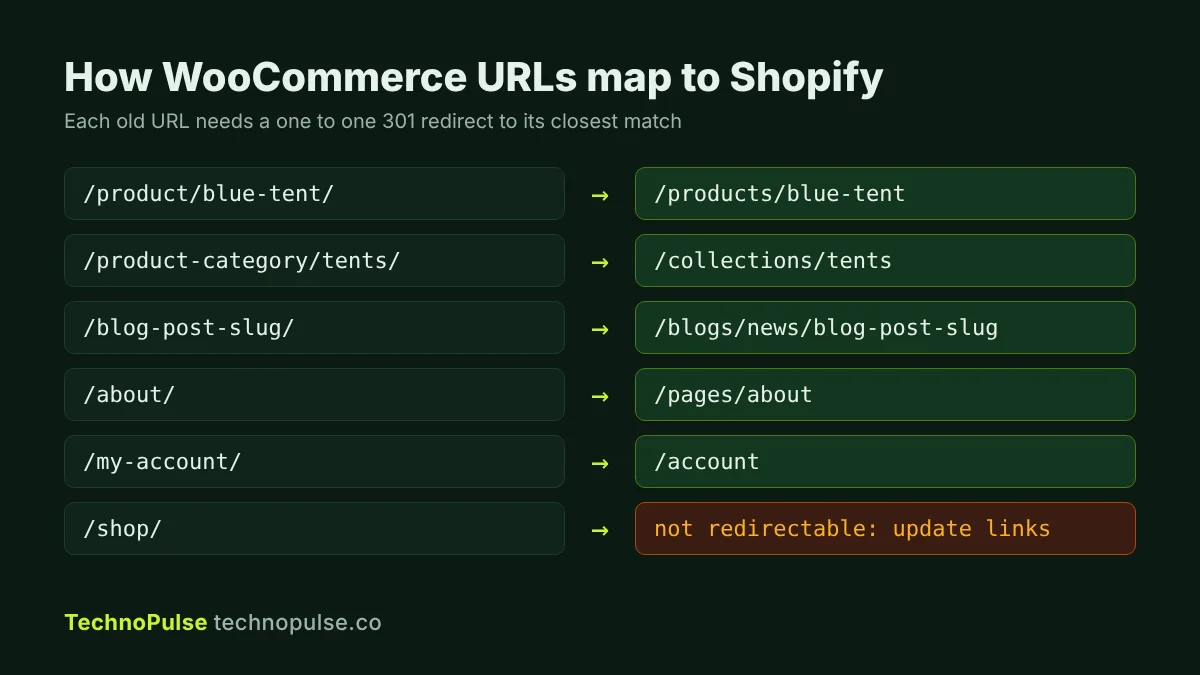
| WooCommerce default | Shopify equivalent |
|---|---|
| /product/blue-tent/ | /products/blue-tent |
| /product-category/tents/ | /collections/tents |
| /blog-post-slug/ | /blogs/news/blog-post-slug |
| /about/ | /pages/about |
| /my-account/ | /account |
| /shop/ | /collections/all (cannot be redirected, see below) |
Build a spreadsheet with two columns, Redirect from and Redirect to. Keep the product handle the same as the WooCommerce slug wherever you can, so the only change is the folder. Then import the sheet in Shopify under Content, Menus, URL redirects, Import. Shopify’s redirect help confirms standard plans hold up to 100,000 redirects and Plus stores up to 20 million, which covers any normal catalog.
The /shop catch most guides miss
WooCommerce’s default store page lives at /shop/. Shopify’s redirect help lists /shop among the prefixes a redirect cannot start with, along with /cart, /orders, /apps and a few others. That means you cannot 301 your old /shop/ page through the redirect manager. Plan for it: update every internal link, ad, email and social bio that points to /shop/ before launch, and ask the sites that link to it to update the link.
Redirect rules that keep link equity
- One old URL goes to one closest match. Never send everything to the home page.
- Deleted products go to their parent collection, not to a 404.
- Redirect straight to the final URL. Chains of two or three hops waste crawl budget and slow users down.
- Shopify only redirects URLs that return a 404, so a redirect will not fire if a live page still sits on the old path.
Step 3: Set up Shopify before you import
Import into a store that is already configured, or you will redo work. In this order:
- Payments, taxes and shipping profiles. The Store Migration app does not import any of these.
- Markets and currencies if you sell in the US, Europe and Australia.
- Your theme, with product, collection and cart templates designed before the data arrives. Our Shopify speed guide covers how to keep the new theme fast.
- Metafields for anything your WooCommerce custom fields held, such as care instructions, size charts or ingredients.
Step 4: Import products, customers and orders
Import in batches and check each batch before the next one.
- Products first. Spot check twenty products across every product type: variants, prices, compare at prices, weights, images and SKUs. Shopify notes that the Store Migration app sets prices to the highest price for a product and does not split inventory by location, so fix both after import.
- Customers second. Remove duplicates and keep marketing consent fields exactly as they were. Do not mark anyone as subscribed who did not opt in.
- Orders last. Order history matters for customer service, lifetime value reporting and Klaviyo segments, so bring at least the last two years.
What happens to customer passwords
Customer passwords are stored as one way hashes and do not move to Shopify. With Shopify’s newer customer accounts this matters less, because customers sign in with a one time code sent to their email instead of a password. If you use legacy accounts, send account invites in small batches after launch so the emails do not look like spam.
Step 5: Rebuild collections, SEO and content
- Recreate categories as collections, using automated rules where tags or product types make it easy.
- Copy every SEO title and meta description from your audit sheet into the matching Shopify product, collection and page. Do not let them fall back to defaults.
- Move blog posts and keep the same slugs inside /blogs/news/.
- Rebuild internal links in product descriptions and blog posts so they point to the new URLs directly, not through redirects.
- Check that each template outputs product structured data and that images have descriptive alt text.
Step 6: Replace plugins and rebuild your email flows
Every WooCommerce plugin needs a Shopify replacement or a reason to drop it. Reviews, subscriptions, wishlists, upsells and loyalty are the usual list. Subscriptions need the most care: ask your new subscription app how it moves existing subscribers and saved payment methods, because that depends on the payment gateway you used.
If you send email through Klaviyo, connect the Shopify integration, then rebuild the flows that relied on WooCommerce events. Your abandoned checkout, welcome, browse abandonment and post purchase flows all need their triggers pointed at Shopify events. Our abandoned checkout email guide shows the setup we use.
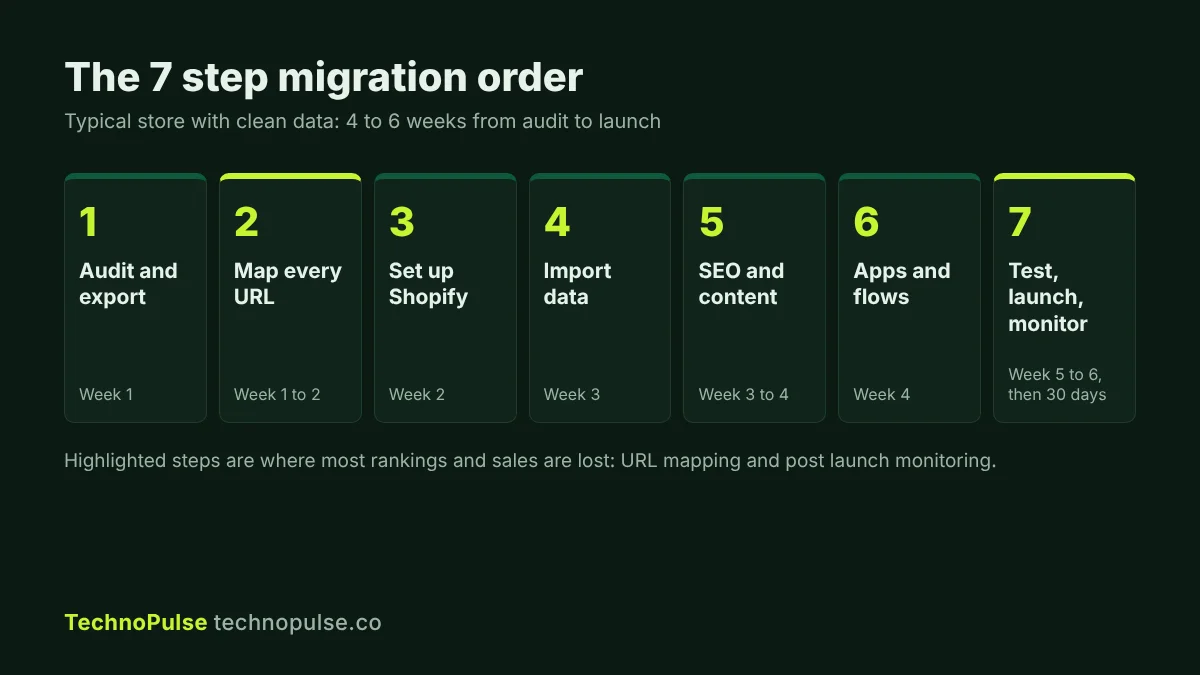
Step 7: Test, launch and monitor for 30 days
Before you switch the domain, place real test orders with every payment method, check taxes and shipping for each market, confirm GA4 and ad pixels fire on purchase, and test the redirect sheet by visiting a sample of old URLs. Then:
- Connect the domain and confirm the primary domain is set in Shopify.
- Submit the new sitemap.xml in Google Search Console and keep the old property.
- Watch the Pages report and 404s daily for the first two weeks, and add a redirect for any old URL that slipped through.
- Compare sessions, conversion rate and organic clicks against your benchmarks at day 7, 14 and 30. A short dip while Google recrawls is normal. A drop that keeps growing after two weeks is almost always a redirect or tracking problem.
One more thing on timing. Do not migrate between Black Friday and the end of the holiday season. Freeze the old store, plan the move in December and launch in January, when traffic is lower and you have room to fix anything that breaks.
How long does a WooCommerce to Shopify migration take?
A store with a few hundred products and clean data usually takes four to six weeks from audit to launch. Large catalogs, custom features, subscriptions or several markets push it to eight weeks or more. The import itself takes days. Most of the time goes into URL mapping, theme work, app replacement and testing.
Still deciding between the two platforms? Read our comparison of Shopify or WooCommerce for scaling an online business.
Frequently asked questions
Will I lose my Google rankings when I move to Shopify?
Not if every old URL has a one to one 301 redirect, your titles and metas carry over and your content stays the same. Expect a short dip of a week or two while Google recrawls, then a return to normal.
Can I migrate WooCommerce to Shopify for free?
Products and customers can move for free with Shopify’s Store Migration app. Orders, blog posts, reviews and redirects need a paid app, a CSV tool or manual work.
Do customer passwords transfer from WooCommerce to Shopify?
No. Passwords are stored as hashes and cannot be moved. Customers sign in with an email code on Shopify’s newer customer accounts, or set a new password through an account invite on legacy accounts.
Can I keep my WooCommerce URLs on Shopify?
Partly. You can keep the same slug or handle, but Shopify adds fixed folders such as /products/, /collections/ and /pages/, so the full URL changes and needs a 301 redirect.
What is the best time of year to migrate?
Your quietest month. For most DTC brands that is January or February. Avoid launching in the eight weeks before Black Friday.
Want a second pair of eyes on your migration plan?
We have helped 200+ DTC brands since 2021 as a Shopify Partner and Klaviyo Partner, and migrations are where small misses cost the most. If you are planning a move from WooCommerce, our Shopify migration services cover URL mapping, data import, theme build and launch monitoring. You can also see how we work with brands after launch in our DOD Outdoors case study, or grab the free Shopify Launch and Migration Checklist from our free guides.
Claim your free store audit and we will review your current store and migration plan before you commit to a launch date.

Founder and CEO of TechnoPulse. Leads Shopify development, CRO and growth strategy for DTC brands in the US, Europe and Australia.
More about Haroon